How to use inbuild APPS with your Cloud PBX for free
A fully integrated Mobile APP with our Cloud PBX at mo extra cost
(Receive calls / Transfer calls / Call History / Send Recieve Fax addon / Instant messaging (IM) / Video Calls addon / Online Phone Book / Voicemail)
- Minimum requirment for you Andriod Phone - Android version 14
- Minimum requirment for you IPhone Phone - IPhone version 14
In these example we will configure extension 101 using different methods.
- Andriod APP https://play.google.com/store/apps/details?id=com.hodupbx.hoduphone - To setup, once the extension is created in the Cloud PBX, you will receive an email and in it there is a QR Code
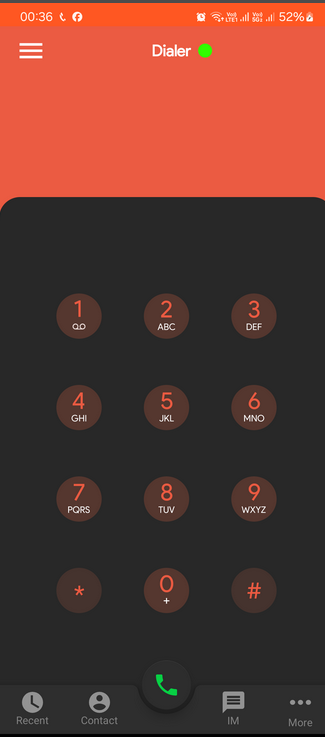
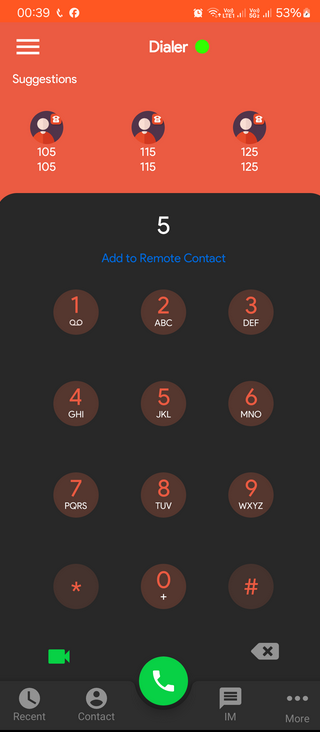
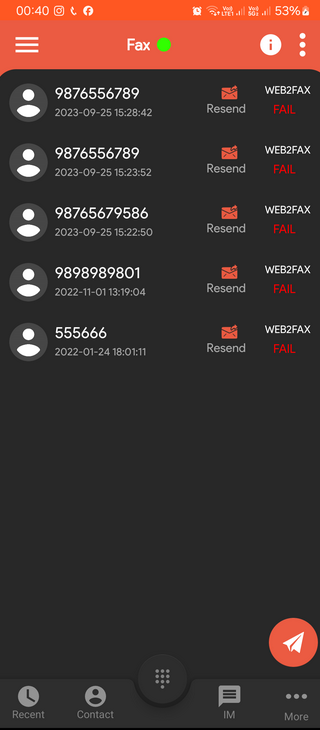
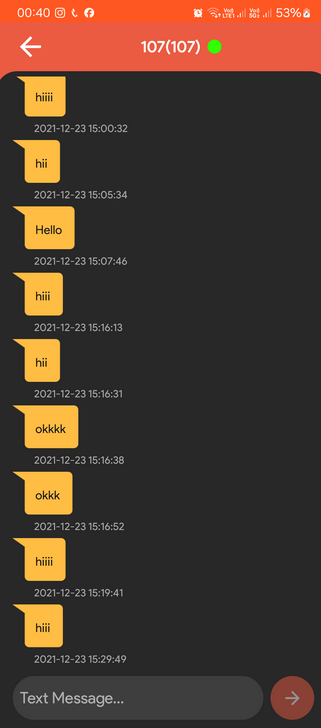
- Ipphone App https://apps.apple.com/in/app/hodudial/id1535436525 to config - Once the extension is created in the Cloud PBX, you will receive an email and in it there is a QR Code
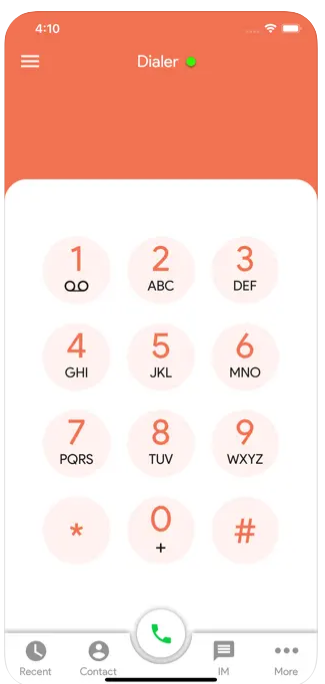
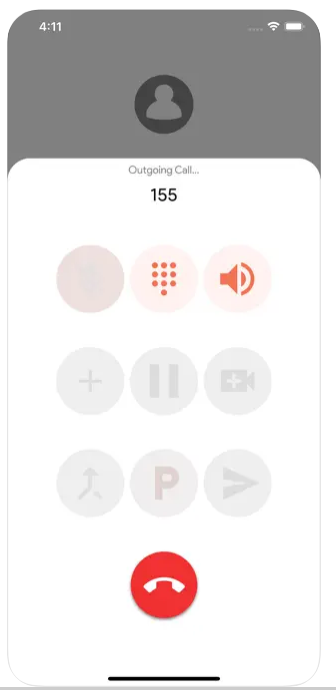
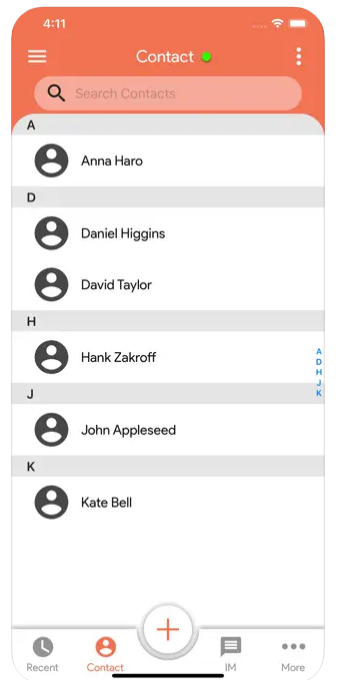
SETUP for the APPS (Android and IOS)
1. Admin of the Cloud PBX or the Agent has received the QR Code via email. If not continue reading for instructions.
2. Install the APP
3. Open
4. Click on QR Code
5. Scan
PS- if using the APP on Mobile network set the protocol as TCP
To get the QR CODE for extension 101 if you do not have the email configuration anymore
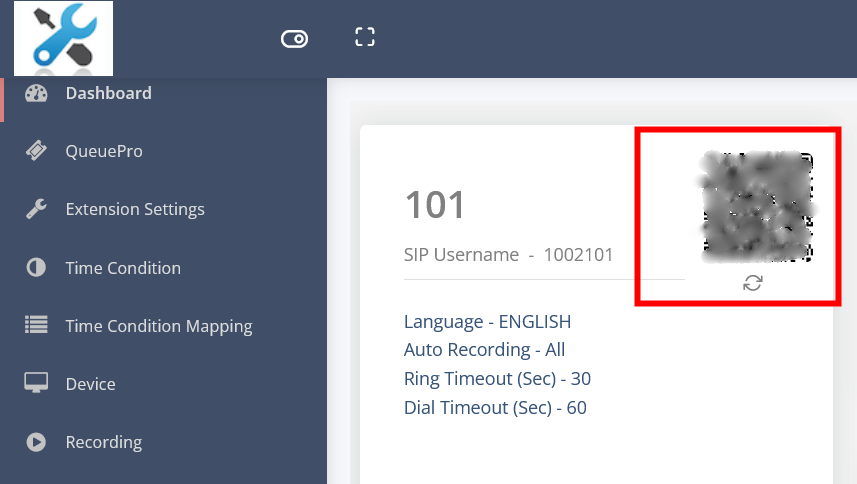
1. Login into the CLOUD PBX at https://cloud3.ivoice.net.au
2. Click on SERVICE
3. Click on EXTENSION
4. On Extension 101 (Click on the first icon) Login as and click OK

5. A new window will open and there you will see the QR CODE (please make sure that you never give that QR CODE to anyone)