Web Phone for Chrome
WDP CloudPBX works using WebRTC & SIP protocol. It makes communication easy and cost-effective.

Goto and download Chrome Extensions at https://chrome.google.com/webstore/detail/wdp-phone/bamfeefgkahlcmiedhknpohndaljfoog
Important Notice - Installing this app on a MAC operating system on chrome, requires DO NOT DISTURB in the MAC computer to be desabled before installing the app.
Example for setting it up
SETUP for Chrome Extension using the extension 101:
1. Login into the CLOUD PBX at https://cloud3.ivoice.net.au/index.php
2. Click on SERVICE
3. Click on EXTENSION
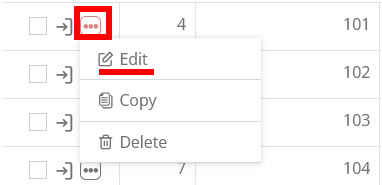
4. Edit the Extension 101 (Click on the 3 dots icon then click on EDIT)
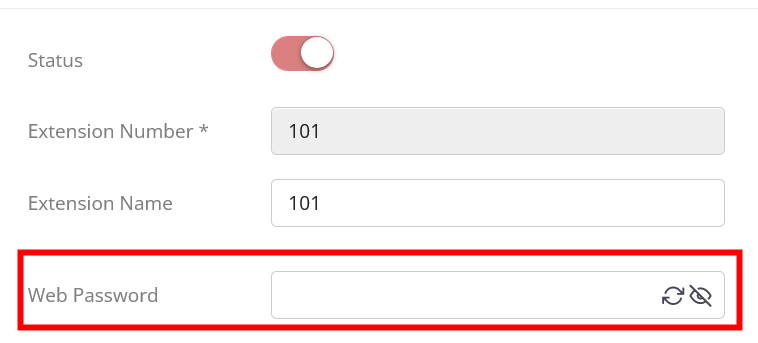
5. On that screen GENERATE a new WEB PASSWORD (found on the right hand side of screen, click to generate then copy it then Save at the bottom)
if you loose it, you will need to generate a new one everytime (recommended to let the system generate a password NOT entering one manually)
6. Then go in the web Chrome Phone settings
7. In the EXTENSION enter 101
In the TENANT ID (enter the Tenant ID found on top of the screen of the Cloud PBX (4digits)

In the PASSWORD paste that password you generated earlier
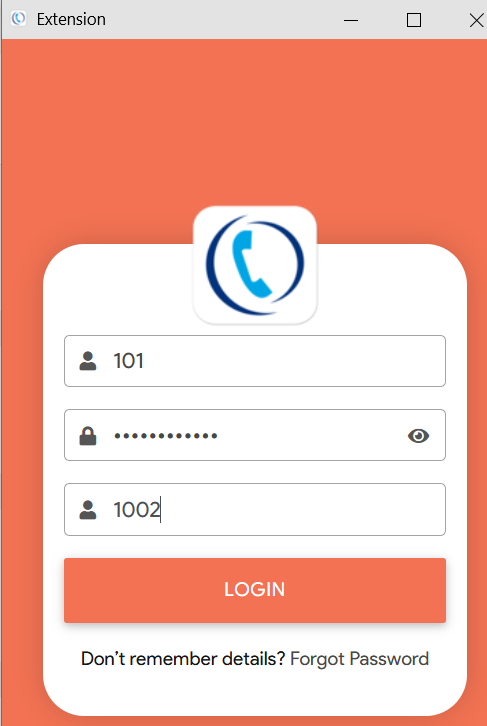
- Fill the details
- Then Click on LOGIN
Any popups that comes up , you would need to ALLOW
-------------------------------------------------------------------------------
What can you do with this Chrome Extension?
Actually it is very usefull :)
1. Make / Receive Calls
2. Send and receive faxes (you need to have fax active)
3. Access all faxes sent and received
4. Video calling between extensions (add-on Cloud PBX users only)
5. Address book
6 Call History
7. Access your Voicemails
8. IM Chat between Extensions
9. Park call
10. Transfer call
11. Mute call
12. Put a call on hold