How to use DND (Do Not Disturb) from your IP Phone
This feature will Enable and Desable DND on the Cloud PBX.
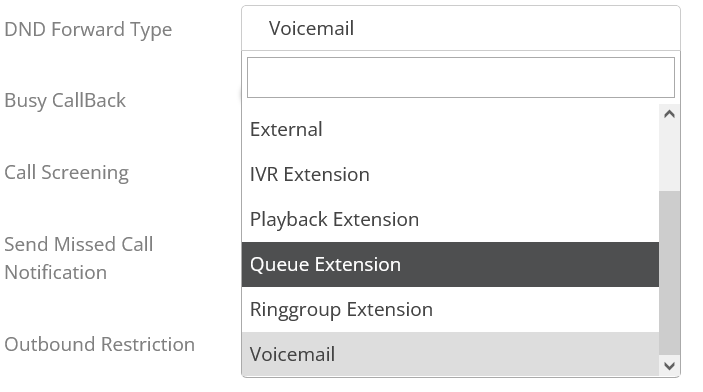
You can setup in your extension ONLINE in the Cloud PBX to instruct what happens when DND is active.
Options available are as follows
a) Divert to Voicemail
b) Divert to External Number
c) Divert to other extension
d) Divert to Queue / Ring Group
e) Divert to IVR
f) Divert to Playback Extension (If you have a licence)
1. If your Yealink IP Phone is Auto Provisioned by the System.
You can just press DND and it will activate
A message on the phone screen will appear that the phone is now on Do Not Disturb (DND)
To cancel, just press DND on the phone
(Important Information)
- If for some unknown reason the codes are missing in the phone settings, you would need to set them up in example step 3.
- Not following these procedures, DND will not be active in the Cloud PBX and only be active on its phone itself and you will get a disconected message as the phone will reject the call and does not know what to do about it

2. Other IP Phones or Softphones
DND Active - Dial *85
DND Deactivate - Dial *87
3. Setting an IP Phone to use the codes
Login into your IP Phone
Look for the settings of DND (Yealink phone settings can be found at FEATURES - FORWARD & DND)
Enter these codes
On Code enter *85
OFF Code enter *87
4. Last Step to make DND works with a call flow
Login as extension in the CloudPBX
Goto SERVICE - EXTENSION
Scroll on one of the 3 icons on the left of the extension and choose LOGIN AS EXTENSION

A new window will open
Click on EXTENSION SETTINGS
Look for DND FORWARD TYPE and activate

Set what you want to do
Click on UPDATE
Then go back to the same page
DESABLE DND again

Click on UPDATE
Done
Next time you press DND on the phone, the call will go to whatever you setup in the last step.
(Important Information)
- This rule will ONLY take over if calling directly to extension or transfering to extension.
- If an incoming call comes from a QUEUE this rule you just setup will not work as Queues are designed to check on availability and send the call to the available ones.
- If you want to divert calls that are coming from the Queues then you would need to do a diversion on the phone. Example can be found here.