DSS Keys - How to Setup BLF using a DSS Key
In this example will be setting extension 102 on IP Phone that has extension 101
With this setup, you will be able to Monitor other Extensions (Available/Busy), Pickup calls from those Extensions and Transfer Calls using either Blind Transfer or Attented Transfer.
Login into your IP Phone that has the 101 extension
Locate the DSSKEYS
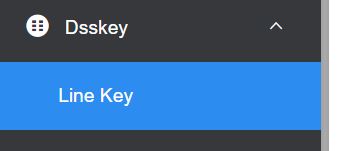
- Find an avialable free button
- Choose from the drop down menu Type - BLF
- LABEL - Name it or give it the extension number 101
- VALUE enter - (tenant id and extension number)
- EXTENSION - enter *81 (entering *81 in this field allows to also transfer calls and pickup calls ringing on the extension 102 from your IP Phone. Entering ONLY the extension number (tenant id and extension number) 1001102 means that you only can monitor the extension - Available / Unavailable / Busy / In Use)
To find you tenant number, log into the Cloud PBX (top right hand corner)

For example your Tenant ID is 1001 and extension to monitor is 102 you enter 1001102

Save and you are done
To add an other BLF button for an other extension, just repeat the above step but this time use a different extension number. eg 103
IMPORTANT
If by any chance, if you heavily modified the IP phones check this settings is correct:
TRANSFER MODE VIA DSS KEYS is set to BLIND TRANSFER. This setting is usually found under some heading TRANSFER

If your Yealink Phone is Auto Provisioned by us, the above feature is set to OPTIONAL. That means when transfering using the DSS Key you will be given the option to either do a BLIND TRANSFER or ATTENDED TRANSFER
2. Auto Provision BLF Keys
Login into the Cloud PBX
Click on SERVICE - DEVICE
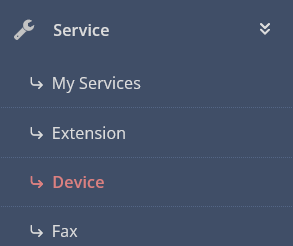
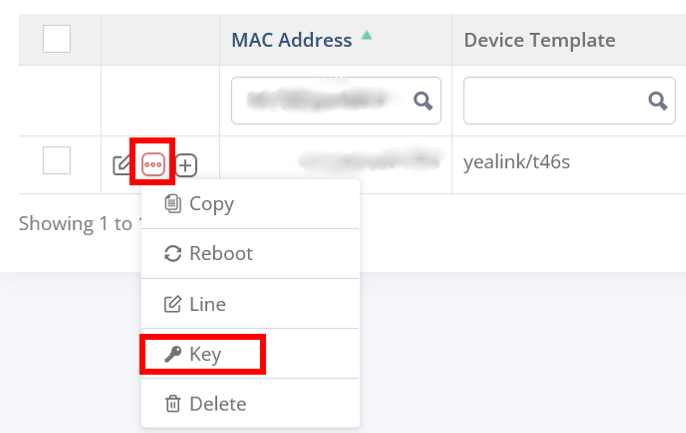
Edit the DEVICE and choos KEYS
Fill entries
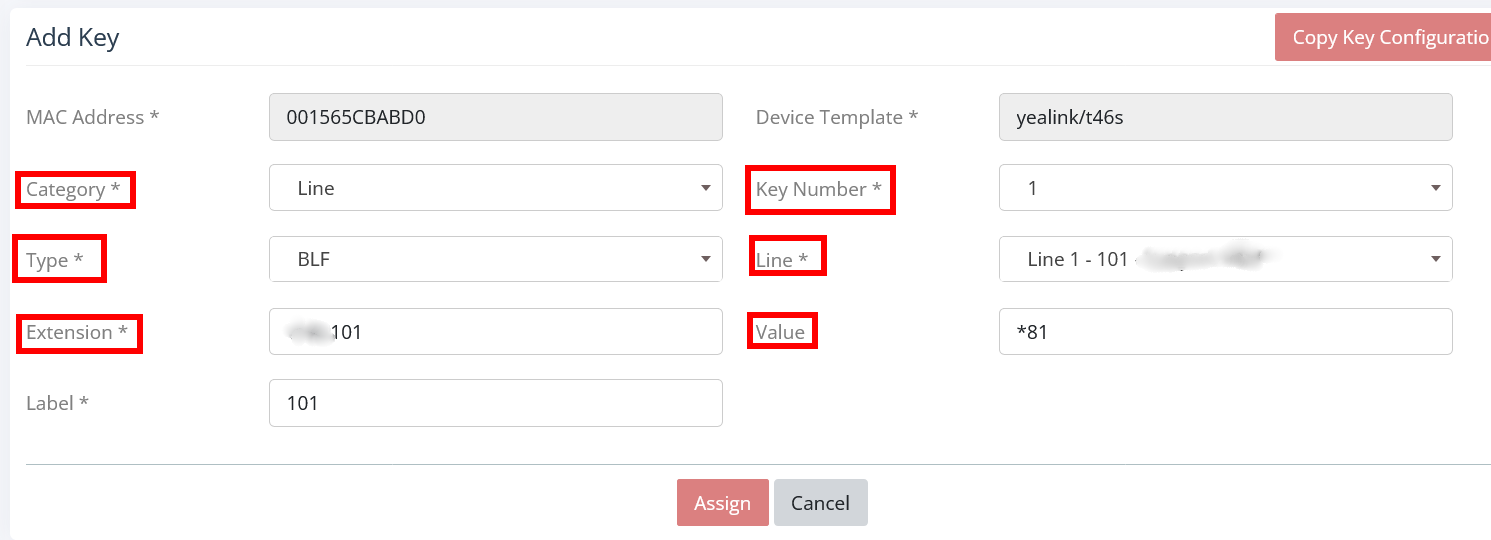
Save
PS. EXTENSION needs to be filled first before entering VALUE - *81 (entering *81 in this field allows to also transfer calls and pickup calls ringing on the extension 102 from your IP Phone. Entering ONLY the extension number (tenant id and extension number) 1001102 means that you only can monitor the extension - Available / Unavailable / Busy / In Use)